Posts

Showing posts with the label KGDB

Debugging Linux Kernel using KGDB Part-5 - kgdbreboot

Image
If you want your debugger to run, when the target machine is going to reboot, you can use "kgdbreboot" parameter to kernel command line. There are three values to this variable. The default value is 0. Kgdbreboot Value Significance 0 Detach message is sent to gdb. Gdb exits the debugging, and you will get the following message. [Inferior 1 (Remote target) exited with code 01] 1 GDB Provides you option to debug -1 No notification is sent to gdb debugger If you want to enable this feature at runtime instead of adding kgdbreboot at commandline, you can use sysfs. echo -1 > /sys/module/debug_core/parameters/kgdbreboot echo 0 > /sys/module/debug_core/parameters/kgdbreboot echo 1 > /sys/module/debug_core/parameters/kgdbreboot

Debugging Linux Kernel using KGDB Part4 - Enable KGDB at runtime

Image
Suppose, you have a scenario in which you have not enabled KGDB at boot time through kernel command line, but have compiled the kernel with the configuration required for KGDB. CONFIG_FRAME_POINTER=y CONFIG_KGDB=y CONFIG_KGDB_SERIAL_CONSOLE=y Now if you want to enable the KGDB, run the below commands on the target machine. Step 1: Specify the serial port, plus baud rate to the kgdboc #echo "ttyS1,115200" > /sys/module/kgdboc/parameters/kgdboc Step 2: Run the Sysrq magic sequence #echo g > /proc/sysrq-trigger On the Host machine it is the same set of commands Step1: gdb ./vmlinux Step2: target remote /dev/ttyS1

Debugging the Linux Kernel using KGDB Part 3 - Magic Sysrq

Image
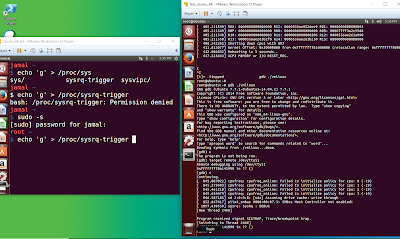
Consider a scenario, where you have sent "continue" command in gdb to target machine,  now you need to connect to the debugger(gdb).  There is no way now, you can achieve it from development machine/host machine. In this case, we can use the magic SysRq sequence on the target machine to enter the debugger mode. Logged in as a root, run the following command to stop the kernel and connect with debugger $echo 'g' > /proc/sysrq-trigger To use this feature, your kernel should be compiled with CONFIG_MAGIC_SYSRQ feature

Debugging Linux Kernel using KGDB Part 2 -kgdbcon

Image
kgdb allows you to see printk messages inside gdb, while gdb is connected to the target machine. In order to achieve this add "kgdbcon" into kernel command line. You can look into the following link for adding kernel command line parameters to grub menu https://embeddedguruji.blogspot.com/2018/12/how-do-permanently-add-kernel-command.html After you type "continue" in the host machine/development machine, generate an panic message on the target machine. Use the sample program from the following link, build and load it. https://embeddedguruji.blogspot.com/2018/12/kernel-panic-in-linux.html When the kernel panic is generated, the dump message and the other logs will be displayed on the host machine gdb session.

Debugging Linux Kernel using KGDB Part 1

Image
What is KGDB? KGDB Stands for Kernel GDB. User space programs can be debugged remotely using the combination of gdbserver on the target machine and gdb on the host machine/development machine. But you cannot use the same setup for debugging kernel, as gdbserver is still running as a user space application on the kernel which we want to debug. To solve this program, KGDB comes into picture. KGDB acts as a gdbserver inside the server. Typical Setup A typical KGDB setup requires two machines connected by serial cable. Host/Development Machine: Runs gdb and performs debugging Target Machine: Runs kgdb and is the machine to be debugged Test Setup Setup on Target VM: 1.     Build and install the latest Linux kernel on the target VM machine, make sure you add the following kernel configurations. Follow this link to build if you are beginner.  https://embeddedguruji.blogspot.com/2018/12/steps-to-build-and-install-latest-kernel....